
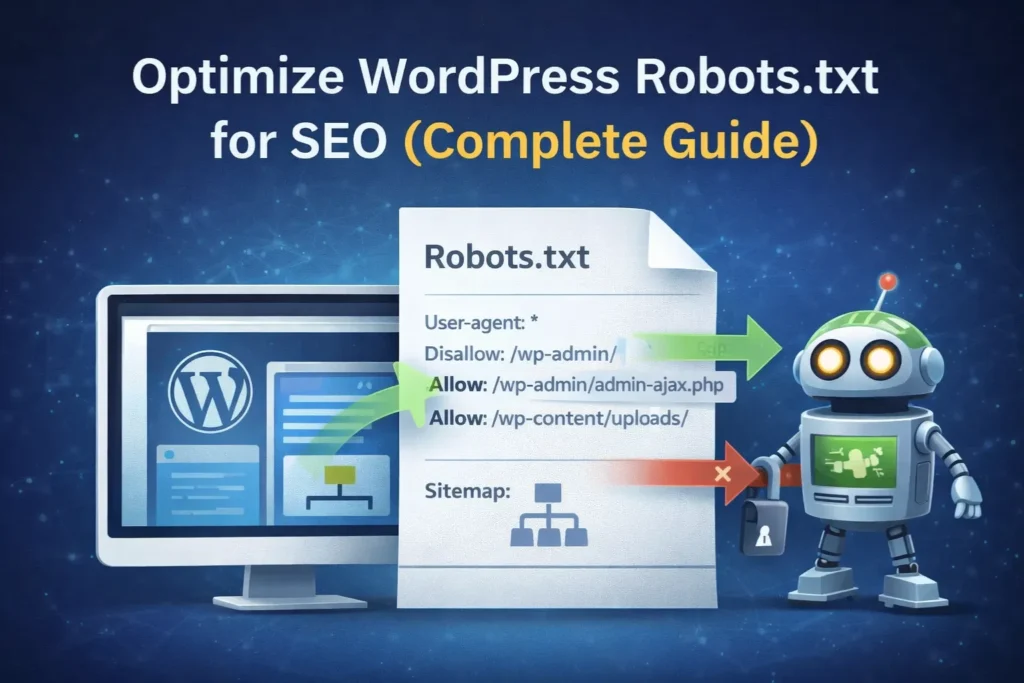
If you’re running a WordPress website or planning to grow your blog, you’ve probably heard about the robots.txt file. But most beginners either ignore it or use it without fully understanding how powerful it actually is.
In simple terms, this small file controls how search engines interact with your website. A single wrong instruction can block important pages, while a properly optimized file can help your content get discovered faster.
In this guide, you’ll learn how to optimize your robots.txt file step by step, avoid costly mistakes, and use it as a reliable technical SEO tool for long-term growth.
- What Is robots.txt and Why Does It Matter?
- robots.txt vs noindex: Important Clarification
- The Ideal robots.txt File for WordPress
- How to Edit robots.txt in WordPress (Step‑by‑Step)
- Common robots.txt Mistakes That Hurt SEO
- How to Test Your robots.txt File
- What You Should NOT Do in robots.txt
- Frequently Asked Questions (FAQ)
- Conclusion: Build a Crawl‑Friendly, Authority Website
What Is robots.txt and Why Does It Matter?
robots.txt is a plain text file located in the root directory of your website:
https://yourwebsite.com/robots.txt
It follows the Robots Exclusion Protocol (REP) and tells search engine bots which parts of your website they are allowed to crawl and which parts they should avoid.
Search engines do not crawl every page on your website continuously. Instead, they allocate a limited amount of resources, often called a crawl budget.
If this budget is wasted on low-value pages like admin URLs or duplicate content, your important pages may not be crawled efficiently. From practical experience, many websites face indexing delays simply because their robots.txt file is missing or incorrectly configured. Even a small mistake can slow down indexing for weeks.
A well‑configured Robots.txt ensures that:
- Important content is crawled and indexed efficiently
- Low‑value or sensitive areas are ignored
- Server load stays optimized
- Google clearly understands your site structure
robots.txt vs noindex: Important Clarification
robots.txt only prevents crawling.
If you want to completely remove a page from search results, you must use:
noindexmeta tags- Password protection
- Search Console removal tools
robots.txt should be used only for crawl management, not content hiding.
robots.txt does not directly improve rankings, but it helps search engines crawl your important pages more efficiently.
You can also read our detailed guide on noindex vs robots.txt vs canonical to understand when to use each method.
Why Robots.txt Is Critical for WordPress SEO
Many bloggers ignore their robots.txt because WordPress generates a “virtual” one by default. However, a custom-optimized file offers three major benefits:
WordPress automatically generates many URLs that have little or no SEO value, such as:
/wp-admin/backend pages- Login and system files
- Internal utility files
Without guidance, search engine bots may waste time crawling these pages instead of your actual content.
Key SEO Benefits of an Optimized robots.txt
1. Efficient Crawl Budget Usage
Search engines have a limited crawl budget for every website, which defines how much time they spend crawling your pages during each visit.
If your site has thousands of useless URLs (like internal search results or backend files), the bot might leave before it ever finds your most important articles.
By blocking these low-value areas, you force the bot to spend its time on your high-quality content.
By blocking unnecessary backend paths, you guide bots toward:
- Blog posts
- Category pages
- Important landing pages
This improves indexing speed and consistency.

2. Better Page Rendering
Modern Google bots need access to CSS and JavaScript files to understand layout, mobile responsiveness and Core Web Vitals.
A proper robots.txt allows required resources while blocking sensitive areas.
3. Preventing Server Overload
Aggressive crawlers and “bad bots” can sometimes slow down your website by making too many requests at once. A well-configured robots.txt can block known malicious bots and help keep your site speed fast for real human users.
4. Optimizing for AdSense Approval
If you are applying for Google AdSense, your robots.txt file becomes even more important. Before approving your site, Google uses a crawler called Mediapartners-Google to review your content.
If this crawler is blocked, Google may not be able to properly access your pages, which can delay or even prevent approval.
If robots.txt blocks this crawler, AdSense may fail to review your site.
What to Allow:
- Mediapartners‑Google crawler
- Content pages
- Images and assets used in ads
What to Avoid:
Never add this rule:
User-agent: Mediapartners-Google
Disallow: /
Blocking the AdSense crawler prevents Google from evaluating your site quality.
The safest approach is not mentioning Mediapartners‑Google at all, allowing it full access.
The Ideal robots.txt File for WordPress
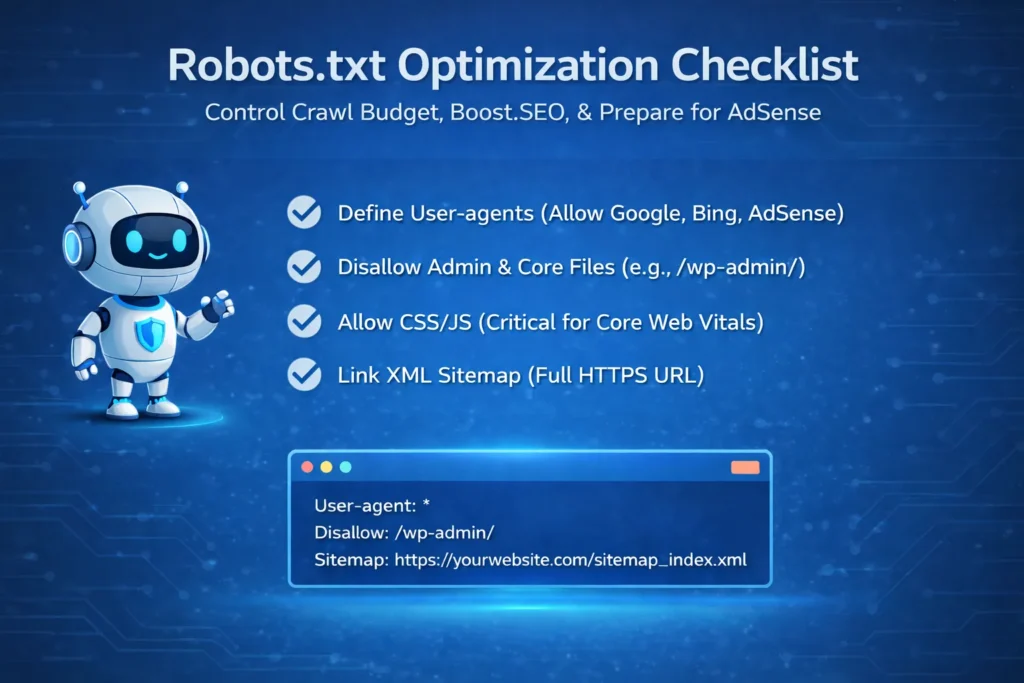
Below is a clean, high‑performance, evergreen robots.txt template suitable for most WordPress sites:
User-agent: *
Disallow: /wp-admin/
Allow: /wp-admin/admin-ajax.php
Allow: /wp-content/uploads/
Disallow: /readme.html
Disallow: /refer/
Sitemap: https://yourwebsite.com/sitemap_index.xml
Explanation of Each Directive
User-agent: *→ Applies rules to all botsDisallow: /wp-admin/→ Blocks WordPress backendAllow: /wp-admin/admin-ajax.php→ Keeps dynamic site features crawlableAllow: /wp-content/uploads/→ Allows images and media indexingSitemap:→ Direct path to your XML sitemap for faster discovery
The Anatomy of a Perfect robots.txt File
A professional robots.txt file consists of these main parts:
- User-agent: This specifies which bot the rule applies to. Using an asterisk (
*) means the rule applies to all bots. - Disallow: This tells the bot which folders or pages it should stay away from.
- Allow: This creates exceptions. For example, you might block a whole folder but “Allow” one specific important file inside it.
- Sitemap: This provides the direct path to your XML sitemap, making it easier for Google to find your newest posts.
If you are confused about how sitemaps work, check our sitemap vs robots.txt guide for a clear explanation.
To help you configure your code safely, the following table summarizes what you should allow and avoid in your WordPress robots.txt file to protect essential features and ensure AdSense readiness:
| Rule Category | What to Include / Allow | What to Avoid / Disallow |
|---|---|---|
| Backend & System Files | Allow: /wp-admin/admin-ajax.php, Allow: /wp-content/uploads/ | Disallow: /wp-admin/ (except specific dynamic/upload exceptions) |
| Design Resources | CSS and JavaScript files | Blocking /wp-content/ or /wp-includes/ entirely |
| Third-Party Crawlers | Mediapartners-Google (essential for AdSense approval) | Disallow: / under User-agent: Mediapartners-Google |
| Sitemap Integration | Direct XML sitemap path at the bottom | Forgetting or omitting the sitemap directive |
How to Edit robots.txt in WordPress (Step‑by‑Step)
Method 1: Using an SEO Plugin (Recommended)
If you use Yoast SEO or All in One SEO, editing robots.txt is simple and safe.
Method: Using the Yoast SEO File Editor
If you aren’t a developer, don’t worry. You don’t need to use complex coding or FTP. Since you are likely using Yoast SEO, the process is simple and safe.
- Log in to your WordPress Dashboard.
- Navigate to Yoast SEO in the left sidebar and click on Tools.
- Click on the File Editor link. (Note: If you don’t see this, it means your hosting has disabled file editing for security; in that case, you would use FTP).
- If you haven’t created a file yet, click the button that says “Create robots.txt file”.
- Yoast will show a text box where you can paste the code provided above.
- Click Save changes to robots.txt.
Using All in One SEO (AIOSEO)
- Go to AIOSEO → Tools → robots.txt
- Enable custom robots.txt
- Add directives
- Save settings
Common robots.txt Mistakes That Hurt SEO
Even a single typo in this file can have massive consequences. Avoid these common pitfalls:
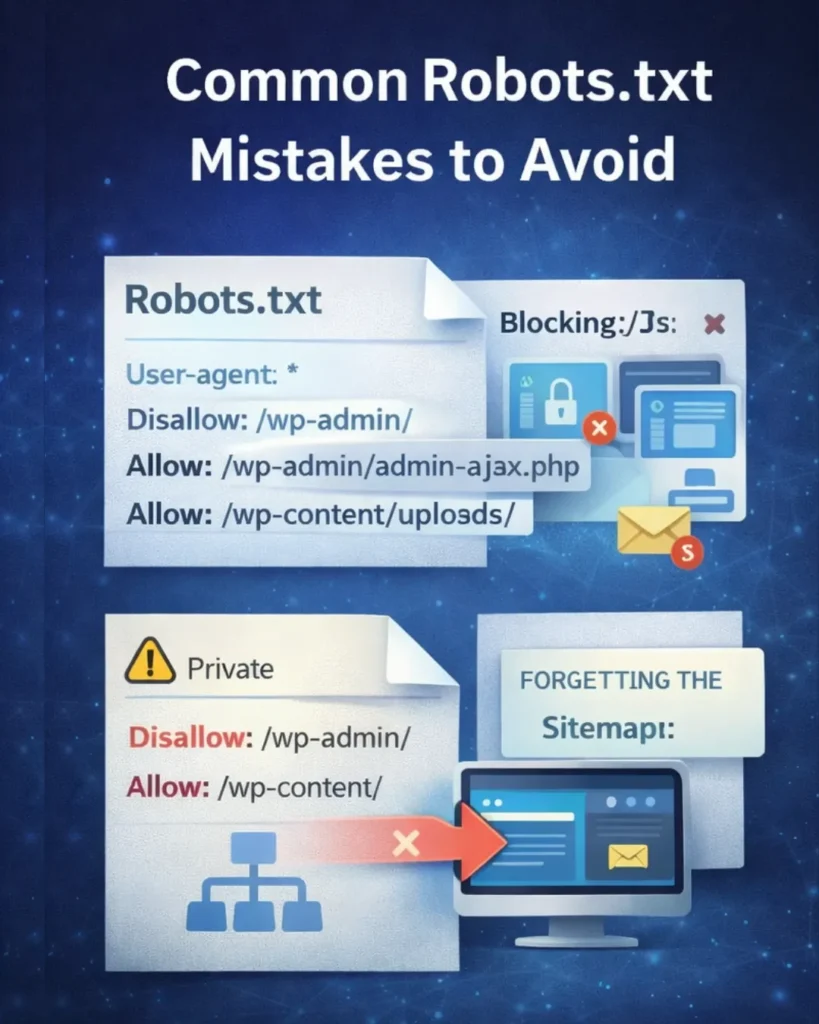
1. Blocking CSS and JavaScript Files
Older guides used to suggest blocking the /wp-includes/ folder. Do not do this. Modern Google bots need to see your CSS and JS to know your site is mobile-friendly. Blocking them can lead to a “Mobile Usability” error in Search Console.
Avoid rules like:
Disallow: /wp-content/
Disallow: /wp-includes/
Google needs these files to evaluate mobile usability and Core Web Vitals.
2. Using robots.txt for Security
robots.txt is publicly accessible. Never rely on it to hide private pages. Never use this file to hide “private” pages. Anyone can see your robots.txt just by typing /robots.txt after your domain. If you have sensitive data, use password protection or a “Noindex” tag instead.
3. Forgetting the Sitemap
Always include your full sitemap URL at the very bottom. This improves crawl efficiency. In fact, this is one of the fastest ways to help search engines discover your new content.
4. Case Sensitivity Errors
Robots.txt is case‑sensitive. Disallow: /Private/ will NOT block the folder /private/. Always use lowercase to match your WordPress URL structure.
To help you prevent costly technical errors, the following table outlines common robots.txt mistakes alongside their negative impacts and the correct approaches:
| Common Mistake | Why It Hurts SEO | The Correct Approach |
|---|---|---|
| Blocking CSS & JS (/wp-includes/) | Triggers "Mobile Usability" errors because Google cannot render pages properly. | Keep design assets fully accessible to search engine bots. |
| Using Disallow for Privacy | Anyone can view robots.txt publicly; sensitive pages can still be indexed if linked. | Use password protection or noindex meta tags instead. |
| Using Robots.txt to De-index | robots.txt only blocks crawling; Google can still index pages if external links point to them. | Use noindex meta tags to completely remove pages from search results. |
| Case Sensitivity Errors | Using uppercase letters (e.g., /Private/) fails because rules are case-sensitive. | Always use lowercase directories matching your exact WordPress structure. |
How to Test Your robots.txt File
After you publish your changes, you should verify them using Google Search Console.
- Go to the “Settings” tab in Search Console.
- Look for the “Crawl Stats” or the “robots.txt Report”.
- Google will show you if it has successfully fetched the file and if there are any errors or warnings. If you see “0 errors,” your site is technically sound.
What You Should NOT Do in robots.txt
Many beginners make critical mistakes while editing robots.txt. Avoid these common errors:
- Blocking your entire website using “Disallow: /”
- Blocking CSS and JavaScript files (this can break page rendering)
- Adding important pages like blog posts or landing pages in disallow
- Using robots.txt to control indexing instead of using noindex
robots.txt controls crawling, not indexing. If used incorrectly, it can harm your SEO instead of improving it.
Frequently Asked Questions (FAQ)
1. Does robots.txt remove a page from Google search?
No. It only stops Google from crawling the page. If another website links to that page, Google might still index it based on the link text. To completely remove a page from search results, you must use a noindex meta tag.
2. Should I block my WordPress “Category” or “Tag” pages?
In most cases, no. While some SEOs believe this saves crawl budget, category pages often help Google understand your site structure and can even rank for broad keywords.
3. How long does it take for Google to see my changes?
Google usually checks your robots.txt file every 24 hours. If you want to speed it up, you can “submit” your updated file via the robots.txt Tester tool in Google Search Console.
4. Can I have more than one robots.txt file?
No. You can only have one file, and it must be located in the root directory (e.g., yoursite.com/robots.txt).
5. Is robots.txt required for small websites?
Yes. Even small sites benefit from crawl optimization and clear bot instructions.
Conclusion: Build a Crawl‑Friendly, Authority Website
robots.txt may be a small file, but it plays an important role in your site’s SEO health. By guiding search engine crawlers correctly, you ensure that your best content receives the attention it deserves.
A clean, AdSense‑friendly and optimized robots.txt signals professionalism, technical competence and trust — all essential factors for long‑term growth. Take a few minutes to review your robots.txt today. This simple step can protect your rankings, improve crawl efficiency and strengthen your website’s foundation for years to come.
A properly optimized robots.txt file shows search engines that your website is well-structured and technically sound.
Mastering your robots.txt file is a hallmark of a professional digital marketer. It is a small file that carries a big responsibility: ensuring search engines respect your server and prioritize your best content. By following the steps in this Digital Smart Guide, you are taking another step toward building a high-authority, technically perfect website.
Suggested Further Reading
- Understanding Google Search Console: Grow Your Website Traffic
- Mastering Google Analytics 4: The Essential Strategy for Growth
- How to Link GSC and GA4 for Advanced Data Insights
- Video Schema Markup: Rank on Google Video Carousel Fast
- Free Product Schema Generator Tool – (JSON-LD): Instantly Create Markup
- Rich Results Test Guide: How to Validate Schema and Fix All Errors
- Complete Guide to Google Business Profile and Local SEO Growth
- How Google Ranks Websites: The SEO Algorithm Explained
- SEO Mistakes to Avoid for New Websites (Beginner Guide)
- Word and Character Counter Tool – Count Words Instantly
✍️ About the Author
Digital Smart Guide is dedicated to simplifying SEO and digital marketing for beginners and professionals.
We share practical, easy-to-understand strategies based on real experience and ongoing learning from Google updates.
Disclaimer
This content is for informational purposes only. Results may vary based on your niche, competition, and implementation. Always apply strategies based on your specific needs.
I’d add one WordPress-specific gotcha: don’t blindly Disallow /wp-content/ just because it looks technical. Blocking uploads, theme CSS, or cached JS can break rendering checks. For small sites I usually start with a minimal file, then use a robots.txt generator only to add explicit crawler rules I can explain.
Great point, Marta — thanks for adding this 👍
Completely agree that blindly disallowing /wp-content/ can break rendering and impact SEO. Keeping robots.txt minimal and intentional is definitely the right approach, especially for smaller sites.
Appreciate you sharing this insight!