
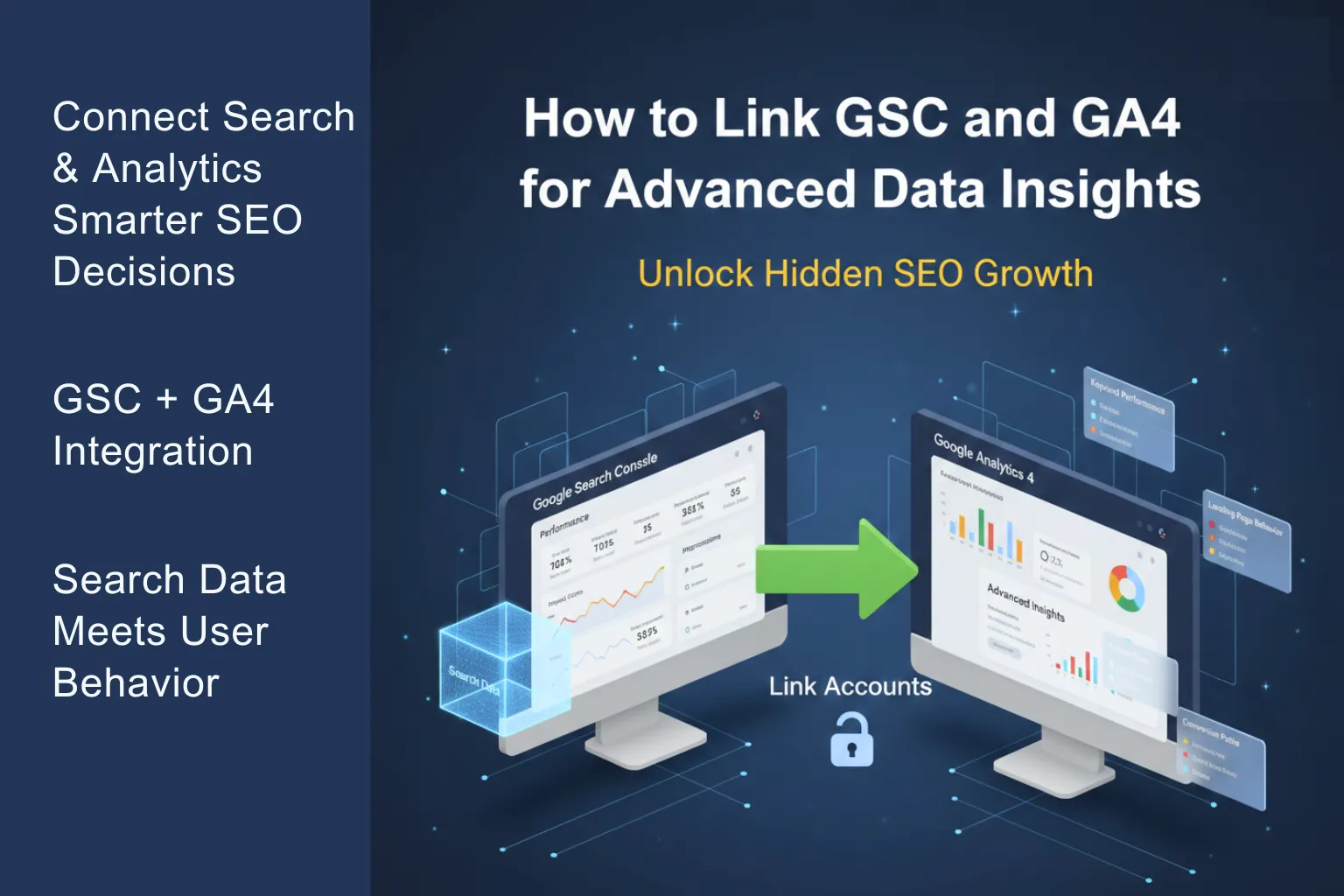
In digital marketing, having data is good, but having connected data is what leads to true growth. If you have been following the Digital Smart Guide series, you already know that Google Search Console (GSC) tells you how people find you, and Google Analytics 4 (GA4) tells you what they do on your site.
However, viewing these in two separate browser tabs is like trying to solve a puzzle with half the pieces in another room. By linking Google Search Console with Google Analytics, you can analyze Search Console search performance alongside Analytics data about how users interact with your website. This makes it easier to connect search queries and landing pages with user engagement metrics.
This guide will walk you through the essential steps to integrate these powerful tools and use their combined data to make better SEO and content decisions. More importantly, this guide is ideal for bloggers, SEO professionals and business owners using GA4.
Why Integration is a Game-Changer for SEO
When you connect Google Search Console to your Google Analytics 4 property, you create a unified reporting environment. Without this link, Google Analytics can show how users interact with your website after arriving from organic search, while Search Console provides Google Search performance data such as queries, impressions, clicks and position. Linking the two lets you analyze these datasets together in Analytics.
The Three Major Benefits:
- Search Performance + User Behavior: Compare Search Console search performance with Analytics data about how users interact with your website.
- Landing Page Optimization: Identify pages that receive search visibility but show weak engagement after users arrive.
- Reporting Efficiency: Access Search Console reports and metrics within Google Analytics, making it easier to review search performance alongside Analytics data.
GSC vs GA4: What’s the Difference?
| Feature | Google Search Console (GSC) | Google Analytics 4 (GA4) |
|---|---|---|
| Primary purpose | Measures Google Search performance | Measures user behavior on your website |
| Main data | Queries, impressions, clicks, position | Users, sessions, engagement, conversions and key events |
| Main focus | How your site performs in Google Search | What users do after visiting your site |
| Search queries | Yes | Available through the linked Search Console report |
| Landing pages | Search performance by page | User behavior and engagement by landing page |
| Conversion analysis | Limited | Yes |
| Best use | Search visibility and SEO analysis | User behavior, engagement and conversion analysis |
Step-by-Step: How to Link GSC and GA4
Before you begin, make sure you have Administrator access to the Google Analytics property and verified ownership of the relevant Google Search Console property. The Google Analytics web data stream and Search Console property should cover the same set of web pages.

Step 1: Open Google Analytics Admin
Sign in to Google Analytics and open the property you want to connect.
Click Admin and make sure you have selected the correct Google Analytics property.
Step 2: Open Search Console Links
Under the Property column – find Product Links and select Search Console Links.
Step 3: Start the Link
Click Link.
Under Link to Search Console properties I manage, click Choose accounts and select the Search Console property you want to connect.
Step 4: Select Your Web Data Stream
Click Confirm, then Next.
Select the proper web data stream for your website.
The Analytics property and Search Console property should cover the same set of web pages.
Step 5: Review and Submit
Click Next, review the configuration, and click Submit to create the connection.
After you submit the configuration, the Search Console link will be created and will appear in your Search Console Links settings.
Google’s current documentation confirms this exact sequence: Admin → Product Links → Search Console Links → Link → Choose accounts → Confirm → Next → select web data stream → Next → review and submit.
To understand how Google officially recommends connecting its tools, you can refer to the Google Analytics Help Documentation for accurate setup and best practices.
How to Find Your Search Console Reports in GA4
After the Search Console integration is created and the data becomes available, you can access the Search Console reports in Google Analytics.
Go to:
Reports → Search Console
The integration provides Search Console reports including:
- Google Organic Search Queries: Shows Search Console search queries and associated Search Console metrics for the linked property.
- Google Organic Search Traffic: Shows landing pages together with associated Search Console and Google Analytics metrics.

The Search Console collection is unpublished by default. If you don’t see it in the Reports navigation, go to Library, find the Search Console collection, and publish it.
Google’s current documentation confirms that these reports may need to be published from Library before they appear in the left navigation.
Now, the “Search Console” section will appear in your report menu, providing you with full access to your query and traffic data.
Important: Search Console and Google Analytics measure different parts of the user journey. Search Console measures performance in Google Search, while Analytics measures activity on your website. Their numbers will not necessarily match because they use different data collection and processing methods.
Advanced Insights: Analyzing the Combined Data
Once the reports are live, you can start digging into “Advanced Insights.” This is where the real growth strategy happens.
1. Identifying “Low-Hanging Fruit” Keywords
In the Queries report, look for keywords where your Average Position is between 5 and 10, but your CTR (Click-Through Rate) is low. This indicates that you are on the first page of Google, but your Title Tag or Meta Description isn’t enticing enough. Improving the page title and other search-result elements may improve CTR and organic traffic, although results will vary depending on the query, competition, search intent, and other ranking factors.
2. Fixing “High-Bounce” Landing Pages
In the Google Organic Search Traffic report, compare Search Console metrics with Analytics engagement metrics. If a page receives organic search traffic but users show weak engagement, investigate whether the page matches the search intent, answers the query clearly, loads efficiently, and provides a good user experience. Low engagement alone does not prove that a relevance gap exists, so use it as a signal for further investigation.
E-E-A-T and Integrated Data
High-authority sites don’t just rank for keywords; they provide answers that satisfy the user. The integration gives you Search Console search data alongside Analytics landing-page and user-behavior data; it does not directly measure user “satisfaction.”
Troubleshooting Common Linking Issues
Sometimes, the connection doesn’t work perfectly on the first try. Here are the three most common reasons:
- URL Mismatch: Make sure your Google Analytics property and Google Search Console property cover the same set of web pages. If your Search Console property is a URL-prefix property, check that its protocol and URL prefix match the pages being measured by your Analytics web data stream. Ensure both use the secure HTTPS version.
- Permission Errors: Permission requirements can prevent the connection from being created. Make sure you have the Editor role on the Google Analytics property and verified owner access to the relevant Search Console property.
- Data Delay: Search Console data is not necessarily available immediately after linking. Google states that Search Console data becomes available in Google Analytics 48 hours after it is collected by Search Console. Be patient!
People Also Ask
1. Why should I link Google Search Console with GA4?
Linking Google Search Console with GA4 helps you combine keyword data with user behavior. This allows you to see not only how users find your website but also what actions they take after landing on it.
2. How long does it take for GSC data to appear in GA4?
After linking, Search Console data can take up to 48 hours to become available in Google Analytics after it is collected by Search Console. Some reports may take slightly longer depending on data volume.
3. Can I unlink Google Search Console from GA4 later?
Yes, you can remove the connection anytime from the GA4 Admin panel under Search Console Links without affecting your website or tracking setup.
4. Does linking GSC and GA4 improve SEO rankings?
No, linking does not directly affect rankings. However, it provides deeper insights that help you optimize content, which can indirectly improve SEO performance.
Frequently Asked Questions (FAQ)
1. Does linking GSC and GA4 slow down my website?
No. This is a server-to-server connection between two Google products. It does not add any extra code to your website and will not affect your page load speed.
2. Can I link multiple GSC properties to one GA4 property?
You can link a Google Analytics property to a Search Console property that covers the relevant set of web pages. When choosing the connection, make sure the Search Console property and the GA4 web data stream cover the same set of pages. For sites with subdomains or multiple sections, choose the Search Console property that appropriately covers the pages you want to analyze.
3. Will my historical data show up in GA4?
Search Console data available in Google Analytics depends on when your Analytics web data stream was created and when your Search Console property was verified. If the web data stream was created before Search Console verification, data can be available from the verification date. If Search Console verification happened first, data can be available from the date the web data stream was created. Search Console data is retained for up to 16 months, so GA4 Search Console reports also have a maximum of 16 months of data.
4. Why are the “Clicks” in GSC different from the “Users” in GA4?
This is normal. GSC tracks “Clicks” on a search result, while GA4 tracks “Users” who have successfully loaded your page. If a user clicks but hits the “Back” button before your site loads, GSC counts a click, but GA4 may not count a user.
Conclusion: Data-Driven Success
Linking Google Search Console and Google Analytics 4 is an important step in building a more complete SEO reporting workflow. By following this Essential Strategy, you move beyond basic traffic numbers and start understanding the “Why” behind your growth.
Knowledge is power, but applied knowledge is profit. Take ten minutes today to link these accounts and start making decisions based on the full picture.
Suggested Further Reading
- Understanding Google Search Console: Grow Your Website Traffic
- Mastering Google Analytics 4: The Essential Strategy for Growth
- Technical SEO Secrets: Build a High-Performance Website
- Complete Guide to Google Business Profile and Local SEO Growth
- Most Common Google Search Console Errors (404, Discovered and Crawled)
- Readability & Parsing Errors in SEO (Beginner Guide)
- Rich Results Test Guide: How to Validate Schema and Fix All Errors
- Free HowTo Schema Generator Tool – Create How-To JSON-LD Instantly
- Video Schema Markup: Rank on Google Video Carousel Fast
- Free Video Schema Generator: Create JSON-LD Code in Seconds
✍️ About the Author
Digital Smart Guide is dedicated to simplifying SEO and digital marketing for beginners and professionals.
We share practical, easy-to-understand strategies based on real experience and ongoing learning from Google updates.
Disclaimer
This content is for informational purposes only. Results may vary based on your niche, competition, and implementation. Always apply strategies based on your specific needs.