
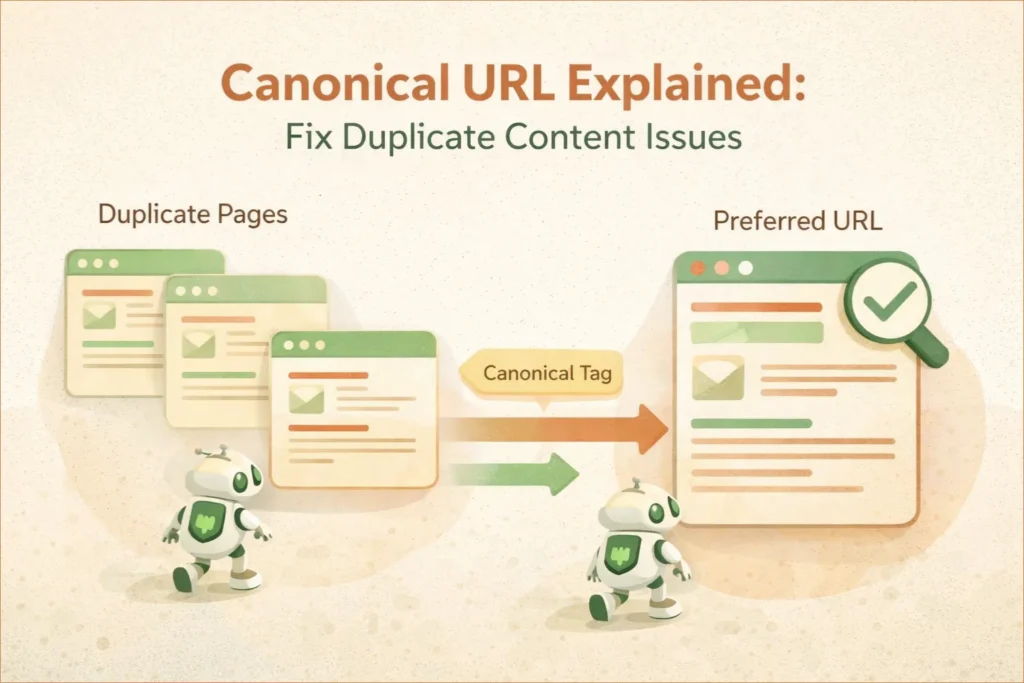
When you publish content on your website, the same page can sometimes be accessible through multiple URLs. This can happen because of URL parameters, different URL formats, site functions, or duplicate versions of similar content.
Google can group these URLs together and choose a representative URL, known as the canonical URL. A canonical URL helps indicate which version you prefer Google to use when several URLs contain duplicate or very similar content.
Canonicalization does not delete duplicate pages or guarantee that Google will select your preferred URL. Instead, it provides Google with an important signal about which version you consider the main one.
In this guide, you’ll learn what canonical URLs are, why they matter, and how to use them correctly without making common SEO mistakes.
- What Is a Canonical URL?
- Why Canonical URLs Are Critical for SEO
- When Should You Use Canonical URLs?
- Canonical Signals Google Uses to Choose a Preferred URL
- How to Set Canonical URLs in WordPress (Step-by-Step)
- Canonical Errors in Google Search Console (Explained)
- How to Audit Canonical URLs (Simple 10-Minute Process)
- Best Practices for Canonical URL Optimization
- Common Canonical Tags Mistakes to Avoid
- Frequently Asked Questions (FAQ)
- Conclusion: Canonical URLs Are SEO Insurance
What Is a Canonical URL?
A canonical URL is the preferred version of a webpage that you want search engines to index and rank.
It is defined using the following HTML tag in the <head> section of a page:
<link rel="canonical" href="https://example.com/preferred-page/" />
This tag tells search engines:
“If there are multiple similar or duplicate pages, treat this URL as the main version.”
Canonical URLs do not block crawling and do not remove pages from search results. Instead, they consolidate ranking signals to a single authoritative page.
Note: A canonical tag is a hint, not a directive. Search engines like Google may choose a different canonical URL if other signals (internal links, sitemaps, redirects) conflict.
Let’s understand this with a simple example.
Imagine your blog post is accessible through these URLs:
- example.com/blog-post
- example.com/blog-post?utm=facebook
- example.com/blog-post/
For a user, all these pages look the same. But for search engines, they are different URLs.
Without a canonical tag, Google has to decide which version to rank. Sometimes it may choose the wrong one, or split your ranking signals across all versions.
Why Canonical URLs Are Critical for SEO
Duplicate or very similar content can cause Google to group multiple URLs together and select one representative URL for search results. This process is known as canonicalization. When Google sees multiple URLs with similar content, it must decide which one to rank — and sometimes it chooses the wrong one.
Canonical URLs solve this problem by providing clear indexing signals.
Canonical URLs can help search engines understand which URL represents the preferred version of similar content.
- They prevent confusion when multiple URLs show similar content
- They can help consolidate signals associated with duplicate or similar URLs toward the preferred version.
- They help search engines crawl your website more efficiently
- They reduce the risk of ranking the wrong page
In simple terms, canonical tags help you control which version of your content gets visibility in search results.
Key SEO Benefits of Canonical URLs
- Prevent duplicate content issues
- Consolidate link equity (backlinks)
- Improve crawl efficiency
- Stabilize rankings
- Reduce index bloat
Canonicalization is especially important for WordPress websites, where multiple URL variations are created automatically.
Common Duplicate Content Scenarios in WordPress
Duplicate content is not a direct penalty in most cases, but it can dilute ranking signals and confuse search engines about which page to index. Even if you never intentionally duplicate content, WordPress can create duplicates behind the scenes.
1. HTTP vs HTTPS
Example:
- http://example.com/page
- https://example.com/page
Without consistent canonicalization and redirect signals, search engines may encounter multiple URL versions and choose which version to index and display.
2. WWW vs Non-WWW
Example:
- https://www.example.com/page
- https://example.com/page
Only one should be canonical.
3. Trailing Slash Variations
Example:
- /page
- /page/
Both URLs may load the same content.
4. Category, Tag and Archive Pages
WordPress can expose the same article through category, tag, author and archive pages. These pages are not automatically duplicates of the original article, but site owners should make sure their indexing and canonical settings reflect which archive pages they actually want searchable.
5. URL Parameters
Example:
- ?utm_source=facebook
- ?ref=email
These tracking URLs should always point to a clean canonical URL.
To see how these parameters impact your data tracking, you can follow my guide on linking Google Search Console and GA4 for advanced insights
Canonical URL vs Noindex vs Robots.txt (Important Difference)
Many beginners confuse these three tools.
| Tool | Purpose | Typical Use Case |
|---|---|---|
| Canonical | Indicates the preferred version of similar or duplicate content | Similar or duplicate URLs |
| Noindex | Tells search engines not to include a page in search results | Pages you don’t want indexed |
| Robots.txt | Controls whether crawlers can access particular URLs or resources | Crawl management |

Important:
Canonical URLs are suggestions, not commands. Google may follow the canonical suggestion when it is consistent with other signals, but Google ultimately decides which URL is most representative.
When Should You Use Canonical URLs?
Use canonical tags when:
- Content is very similar or identical
- Pages serve the same intent
- You want one page to rank
- URL variations exist
- Product or filter URLs exist
Do NOT use canonical when:
- Pages have different search intent
- Content is substantially different
- You want both pages indexed
How Google Treats Canonical URLs
Google evaluates canonical signals based on:
- Canonical tag
- Internal linking
- Sitemap URLs
- HTTPS preference
- Page content similarity
If your signals conflict, Google may ignore your canonical tag and choose its own version.
This is why consistency matters.
Canonical Signals Google Uses to Choose a Preferred URL
Google does not rely on a single signal to choose the canonical URL. Instead, it looks at multiple signals together and assigns weight to each.

Google uses multiple signals when choosing a canonical URL, including redirects, rel="canonical" annotations, sitemap URLs, HTTPS preferences, internal linking, and the similarity of the page content.
These signals work together, and Google may choose a different canonical URL if the signals conflict.
Google Search Central considers permanent redirects and rel="canonical" annotations strong canonicalization signals, while sitemap inclusion is a weaker signal. Google also recommends linking internally to the canonical URL rather than to duplicate versions.
Here are the main signals you should keep consistent when managing canonical URLs:
1️⃣ Internal Links: Keep Your Canonical Signals Consistent
If your internal links consistently point to /page while your canonical tag points to /page/, you are sending conflicting signals. Keep your internal links aligned with the canonical URL you prefer.
2️⃣ Canonical Tag
The canonical tag is a strong hint, but not a guarantee.
Google may ignore it if:
- The content is not similar
- Internal links contradict it
- The page is blocked or redirected
3️⃣ XML Sitemap URLs
Google expects:
- Sitemap URLs = Canonical URLs
If you submit non-canonical URLs in your sitemap, you send conflicting signals, which often results in:
“Google chose a different canonical”
4️⃣ HTTPS and Domain Preference
Google prefers:
- HTTPS over HTTP
- Non-redirected URLs
- Clean URL structures
If your canonical points to HTTP but the page loads on HTTPS, Google will override it.
5️⃣ Redirects and Canonicalization
Permanent redirects are a strong signal that the destination URL should be treated as the preferred version. Google recommends using redirects when you want to retire or consolidate a duplicate URL.
A canonical tag is more appropriate when multiple URLs need to remain accessible but you want to indicate which version represents the preferred page.
✅ Pro Tip
Your canonical strategy should match internal links + sitemap + redirects.
When redirects, canonical tags, internal links, sitemap URLs, and page content consistently point toward the same preferred URL, you give Google clearer signals about your canonical preference. However, Google may still select a different canonical when its systems determine that another URL is more representative.
How to Set Canonical URLs in WordPress (Step-by-Step)
Method 1: Using Yoast SEO (Recommended)
Yoast automatically adds self-referencing canonical URLs.
To set a custom canonical:
- Edit the post or page
- Scroll to Yoast SEO box
- Open Advanced tab
- Enter preferred canonical URL
- Save changes
Use this only when needed — unnecessary canonicals can cause problems.
Method 2: Using Rank Math
- Edit post
- Go to Rank Math settings
- Open Advanced
- Add Canonical URL
- Update post
Method 3: Manual Canonical Tag (Advanced)
<link rel="canonical" href="https://example.com/preferred-page/" />
Only use manual canonicals if you fully understand the structure.
Pro Tip: Cross-Domain Canonicals. If you are republishing your blog post on another website, you can use a cross-domain canonical tag. for example, this tells Google that the version on digitalsmartguide.com is the original source, ensuring your website gets the ranking credit instead of the third-party site.
Self-Referencing Canonicals: Best Practice
For pages you want indexed, a self-referencing canonical is a useful best practice because it clearly communicates the preferred URL. Google recommends including a self-referential canonical on the canonical page itself.
<link rel="canonical" href="https://example.com/this-page/" />

For example,
<link rel="canonical" href="https://digitalsmartguide.com/canonical-url-duplicate-content-guide/" />
This provides Google with a clear signal about the URL you prefer as the canonical version.
Canonical URLs and XML Sitemaps
Your sitemap should include only canonical URLs.
Never include:
- Parameter URLs
- Duplicate versions
- Noindex pages
If a URL is in your sitemap but canonicalized to another page, Google may flag warnings in Search Console.
Practical Example: Choosing the Correct Canonical URL
Suppose your preferred page is:
https://digitalsmartguide.com/example-page
You may also encounter variations such as:
https://digitalsmartguide.com/example-page/?utm_source=facebook
https://digitalsmartguide.com/example-page/?ref=email
These URLs may be used for tracking or other purposes, but the clean page URL can remain your preferred canonical version.
In WordPress, an SEO plugin such as Yoast SEO can generate the canonical tag automatically. Before creating a custom canonical, check the page source and confirm that the canonical points to the URL you actually want Google to use.
You should also make sure your internal links and sitemap consistently use the preferred URL.
Canonical Errors in Google Search Console (Explained)
Common GSC Messages
- Duplicate, Google chose different canonical
- Alternate page with proper canonical tag
These are not always errors, but they indicate canonical conflicts.
How to Fix:
- Check internal links
- Check sitemap URLs
- Check HTTPS and trailing slash consistency
- Verify canonical tags
How to Audit Canonical URLs (Simple 10-Minute Process)
You don’t need expensive SEO tools to audit canonical URLs. You can do a complete check using Google Search Console and your browser.
Step 1: Check Canonicals in Google Search Console
- Open GSC
- Go to Pages
- Click:
- Duplicate, Google chose different canonical
- Alternate page with proper canonical tag
Open a sample URL and check:
- User-declared canonical
- Google-selected canonical
If they don’t match, you have a signal conflict.
Step 2: View Canonical Tag in Browser
- Open the page in Chrome
- Right-click → View Page Source
- Search for:
rel="canonical"
Confirm:
- Correct URL
- HTTPS
- No trailing slash mismatch
Step 3: Compare with Sitemap URL
Check if the same URL appears in:
- XML sitemap
- Internal links
- Canonical tag
If not — fix the inconsistency.
Step 4: Check Robots.txt and Noindex
Ensure the canonical URL:
- Is NOT blocked in robots.txt
- Does NOT contain a
noindextag
Blocking a canonical URL creates serious indexing confusion.
Step 5: Monitor for 2–3 Weeks
Canonical fixes are not instant.
Google usually:
- Reprocesses canonicals in 1–3 weeks
- Updates indexing gradually
Avoid making repeated changes during this period.
For correct implementation:
- Use absolute URLs (not relative)
- Ensure the canonical URL returns a 200 status code
- Maintain consistency with internal linking and sitemap
Best Practices for Canonical URL Optimization
✔ Use absolute URLs
✔ Be consistent site-wide
✔ Avoid canonical chains
✔ Use one canonical per page
✔ Match sitemap URLs
✔ Monitor GSC regularly
✔ Always use self-referencing canonical tags on original pages to clearly indicate the preferred version.
When You Should NOT Use Canonical Tags
- When pages have significantly different content
- Use proper pagination structure (rel=”next/prev” is no longer used by Google, but can still help for accessibility and other search engines)
- When redirect (301) is a better solution
To understand how canonical tags differ from indexing controls, read our guide on Noindex vs Robots.txt vs Canonical.
Common Canonical Tags Mistakes to Avoid
Many website owners use canonical tags incorrectly, which can silently harm SEO. Here are some common mistakes:
- Using canonical tags with different content pages
- Setting multiple canonical tags on the same page
- Blocking canonical pages using robots.txt
- Not using self-referencing canonical tags
Always Remember: Canonical tags are signals, not commands. Search engines may ignore them if your implementation sends mixed signals.
This guide explains the practical steps website owners can use to understand and manage canonical URLs in WordPress.
Frequently Asked Questions (FAQ)
1. What is a canonical URL in simple terms?
A canonical URL is the preferred version of a webpage that you want search engines to index when multiple URLs contain similar or duplicate content. It helps Google understand which page should receive rankings and SEO value.
2. Does a canonical URL remove duplicate pages from Google?
No. A canonical URL does not remove duplicate pages from Google. It simply tells search engines which version should be treated as the main page. To fully remove a page, you must use a noindex tag or remove the page entirely.
3. Can Google ignore my canonical tag?
Yes. Google treats the canonical tag as a hint, not a command. If your internal links, sitemap, redirects or page content send conflicting signals, Google may choose a different canonical URL.
4. Should every page have a self-referencing canonical tag?
For pages you want indexed, a self-referencing canonical is a useful best practice. Google recommends adding a self-referential canonical to the canonical page itself, although Google ultimately decides which URL is canonical.
5. What is the difference between canonical and redirect?
A canonical tag suggests the preferred URL while keeping all versions accessible.
A 301 redirect permanently sends users and bots to another URL and removes the original page from indexing. Canonicals are used when pages must remain accessible.
While both pass link equity, a 301 redirect is a permanent move that forces the user to a new page, whereas a canonical tag is an indexing instruction that allows the original URL to remain visible to users while consolidating its ranking power into the preferred version.
6. Should canonical URLs be included in the sitemap?
Yes. Your XML sitemap should include only canonical URLs. Including non-canonical URLs in the sitemap creates mixed signals and may cause indexing problems in Google Search Console.
7. Are canonical URLs important for eCommerce and blogs?
Absolutely. Canonical URLs are especially important for:
- eCommerce filters and product variants
- Blog pagination
- Category and tag pages
- Tracking parameters
They prevent SEO value from being split across multiple URLs.
8. How long does Google take to apply canonical changes?
Canonicalization changes are not necessarily reflected immediately. Google needs to recrawl and reevaluate the affected URLs, so allow time for the changes to be processed before drawing conclusions. The timing depends on crawl frequency and site authority. Avoid making repeated changes during this period.
9. Do canonical URLs affect page speed or Core Web Vitals?
No. Canonical URLs do not impact page speed or Core Web Vitals. They are a crawling and indexing signal only.
10. Where is the best place to add the canonical tag in WordPress?
The canonical tag should be added inside the <head> section.
SEO plugins like Yoast SEO, Rank Math or AIOSEO automatically handle canonical tags correctly for WordPress websites.
Conclusion: Canonical URLs Are SEO Insurance
Canonical URLs are a simple but powerful SEO tool that helps you manage duplicate content effectively. Instead of letting search engines guess which page to rank, you guide them toward the correct version. This improves your site’s visibility, strengthens ranking signals and ensures better long-term SEO performance.
Canonical URLs are one of the most misunderstood — yet most powerful — elements of technical SEO. If you have ever seen “Duplicate, Google chose different canonical” in Google Search Console, this guide is for you.
If robots.txt controls crawler access and sitemaps help Google discover URLs, canonicalization helps Google understand which URL should represent similar or duplicate content.
Mastering canonicalization is a key step toward building a technically sound, high-trust website.
If you’re serious about growing your website traffic, implementing canonical tags correctly is not optional — it’s essential.
Suggested Further Reading
- Keyword Cannibalization: Why Your Pages Compete (And How to Fix It)
- Why Google Indexes Your Page But Doesn’t Rank It (Fixes That Actually Work)
- Most Common Google Search Console Errors (404, Discovered and Crawled)
- Readability & Parsing Errors in SEO (Beginner Guide)
- How to Link GSC and GA4 for Advanced Data Insights
- Rich Results Test Guide: How to Validate Schema and Fix All Errors
- Complete Guide to Google Business Profile and Local SEO Growth
- Smart Image Alt Text Generator: Boost Image SEO and Rankings
- The Ultimate Guide to Image SEO: Rank Higher and Load Faster
- Use On-Page SEO Techniques to Boost Rankings Fast
✍️ About the Author
Digital Smart Guide is dedicated to simplifying SEO and digital marketing for beginners and professionals.
We share practical, easy-to-understand strategies based on real experience and ongoing learning from Google updates.
Disclaimer
This content is for informational purposes only. Results may vary based on your niche, competition, and implementation. Always apply strategies based on your specific needs.