
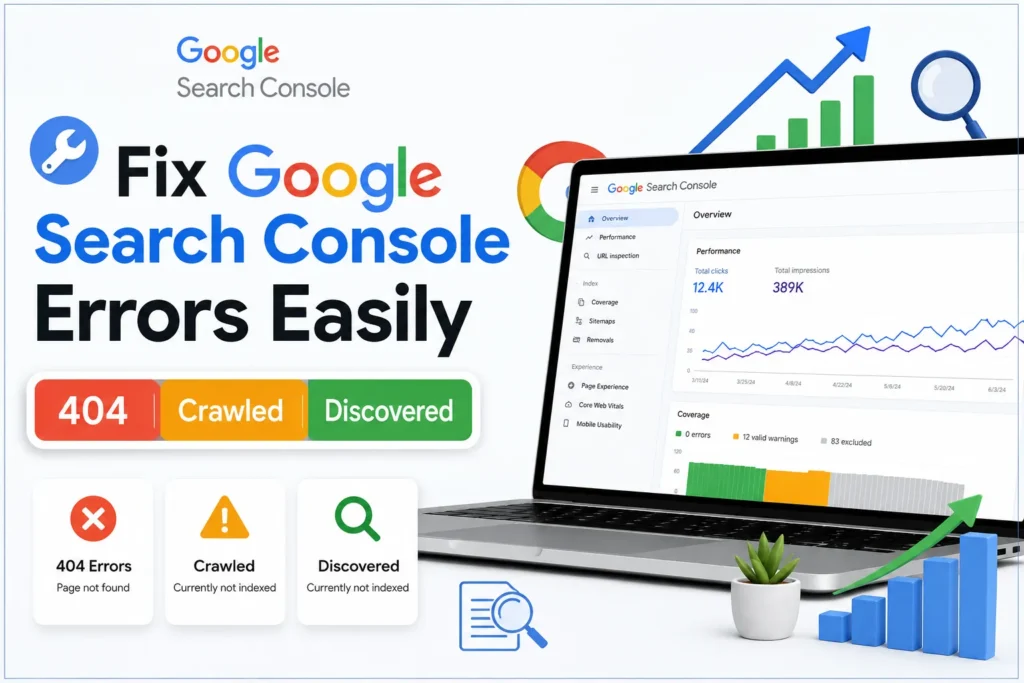
If you have just started using Google Search Console, you have likely encountered messages that sound like technical gibberish. You open your dashboard, eager to see your progress and are instead greeted by warning signs like:
- “Not Found (404)”
- “Discovered – currently not indexed”
- “Crawled – currently not indexed”
At first, these errors can feel overwhelming. You might think you have broken your website or that Google has punished you. Here is the truth: Most of these issues are extremely common, standard parts of running a website, and they are usually very easy to fix—even if you have zero coding knowledge.
In this complete, deep-dive guide, we will break down what these errors mean, why they happen, and how you can fix them to keep your SEO health in top shape.
- Why Google Search Console Errors Actually Matter
- 1. How to Fix “Not Found (404)” Errors
- 2. Fix “Discovered – Currently Not Indexed”
- 3. Fix “Crawled – Currently Not Indexed”
- Universal Fix Checklist: The "Big Three"
- Monitoring Your Progress: Using the "URL Inspection" Tool
- Advanced Tips for Long-Term Indexing Health
- How Long Does It Take?
- Frequently Asked Questions (FAQs)
- Conclusion: Turning Errors into Growth
Why Google Search Console Errors Actually Matter
Google Search Console is essentially the “health report” for your website. It is the direct line of communication between your site and Google’s search bots.
If your pages are categorized as “Not found,” “Not indexed,” or “Ignored,” your content simply will not appear in search results. When your content does not show up on Google, the consequences are clear:
- No traffic: People cannot find you.
- No rankings: You cannot compete for keywords.
- No growth: Your hard work on content creation goes unseen.
Fixing these errors is not just about clearing your dashboard; it is about ensuring that every piece of quality content you create has a fair chance to reach your target audience.
Quick Troubleshooting Reference Table
| Error Type | What it Means | Primary Fix |
|---|---|---|
| Not Found (404) | Page does not exist | Redirect (301) or fix link |
| Discovered – Not Indexed | Google knows it but hasn’t crawled it | Internal links & request indexing |
| Crawled – Not Indexed | Google saw it but didn’t value it | Improve content quality/depth |
| ?m=1 (Blogger) | Duplicate mobile URL | Ignore (handled by Blogger) |

1. How to Fix “Not Found (404)” Errors
What Does 404 Mean?
A 404 error is the digital version of a “Dead End” sign. It means Google tried to visit a specific URL, but the page was nowhere to be found.
Common causes include:
- Deleted posts: You removed an old article.
- Changed URLs: You renamed a post’s address but didn’t tell Google.
- Broken internal links: You accidentally linked to a page that doesn’t exist.
- External errors: Another website linked to you, but they made a typo in the link.
The Step-by-Step Fix
Step 1: Check Intentional Deletions
Ask yourself: Did I remove this page on purpose? If the answer is “Yes,” you don’t necessarily have to panic. Google will eventually realize the page is gone and remove it from its index. If the answer is “No,” you must act.
Step 2: Use a 301 Redirect
If you deleted a page but have a new, similar page, use a 301 redirect. This tells Google, “This page has permanently moved to this new address.” It passes the “authority” of the old page to the new one.
Step 3: Fix Broken Internal Links
Sometimes your current posts are still linking to the pages you deleted. You should edit those posts and replace the broken links with working, relevant URLs.
Step 4: Clean Your Sitemap
Your sitemap should be a list of your best, working pages. If you have 404 URLs in your sitemap, remove them immediately so Google doesn’t waste time crawling dead links.
Platform-Specific Tips
WordPress:
Go to Settings → Permalinks and simply click “Save Changes.” This refreshes your website’s URL structure and can fix many 404 errors. You can also install plugins like Redirection or Broken Link Checker to automatically detect and fix broken links.
Blogger:
Navigate to Settings → Errors and redirects → Custom redirects.
Here, you can manually redirect deleted or broken URLs to the correct working pages.

Example:
- 404 Error URL (Broken Link):
www.yourwebsitename.com/2023/11/art-of-pipe-manufacturing.html%3Fm%3D1 - Correct URL (Working Page):
www.yourwebsitename.com/2023/11/art-of-pipe-manufacturing.html
Add the broken URL in the “From” field and the correct URL in the “To” field, then enable Permanent (301) redirect and then click ok.
By adding this redirect, visitors and search engines will be automatically sent to the correct page instead of seeing a 404 error.
2. Fix “Discovered – Currently Not Indexed”
What Does It Mean?
This is one of the most misunderstood errors. It simply means Google knows your page exists, but it hasn’t crawled it yet. It’s like having an invitation to a party but not yet arriving. This is incredibly common for new blogs or sites with thousands of pages.
Why it happens:
- Low crawl budget: Google doesn’t have time to crawl every single page on your site daily.
- Weak internal linking: You haven’t linked to the page enough.
- Too many pages at once: You published 50 posts in one day, and Google is overwhelmed.
The Step-by-Step Fix
Step 1: Add Strong Internal Links
Google finds pages by following links. If a new post is sitting in isolation, link to it from your homepage or your most popular existing articles.
Step 2: Improve Website Speed
If your site loads slowly, Google’s bots get impatient and leave. Use fast hosting, enable browser caching, and ensure your images are compressed.
Step 3: Request Indexing
Paste your URL into the top search bar of Google Search Console and click “Request Indexing.” This moves your page up in the queue.
3. Fix “Crawled – Currently Not Indexed”
What Does It Mean?
This is different from “Discovered.” Here, Google did crawl your page, but it decided not to show it in search results. This is almost always a sign of a quality issue.
Why it happens:
- Thin content: The post is too short or lacks information.
- Low value: The content doesn’t solve a specific user problem.
- Duplicate content: You have two pages saying the exact same thing.
The Step-by-Step Fix
Step 1: Add Depth and Value
Does your page solve a real problem? Improve it by adding more explanations, examples, and unique insights. A good rule of thumb is to aim for 1,200 to 2,000 words if the topic allows for it.
Step 2: Merge or Canonicalize
If you have two pages that cover the same topic, merge them into one “mega-guide.” If they must stay separate, use a canonical tag to tell Google which one is the “master” version.
Step 3: Check for “Noindex”
Ensure you haven’t accidentally checked a box in your settings (like in Yoast or RankMath) that tells Google, “Do not index this page.”
The Special Case: The “?m=1” Blogger Issue
If you use Blogger, you might see errors involving URLs that end in ?m=1.
- What it is: This is Blogger’s way of showing your site on mobile devices.
- The Fix: Do not worry about this too much. Focus on submitting the “clean” URL (
/post-name) to Google Search Console. Blogger automatically handles the canonicalization for mobile users.
Universal Fix Checklist: The “Big Three”
Whenever you see a new error in Google Search Console, follow this sequence:
- Inspect URL: Enter the link into the GSC search bar.
- Test Live URL: Click “Test Live URL” to see if the page is currently accessible.
- Request Indexing: If everything looks good, click “Request Indexing.”
These three steps will solve 90% of the issues you will face as a website owner.
Monitoring Your Progress: Using the “URL Inspection” Tool
Many beginners fix an error and then walk away, hoping for the best. A more professional approach is to use the URL Inspection tool as your personal validator.
When you make changes to a page—like fixing a 404 error or improving thin content—you don’t have to guess if Google sees those changes.
How to monitor your fixes effectively:
- The “Test Live URL” Feature: After you have updated your page or fixed a broken link, go to the top search bar in GSC and inspect the URL again. Click “Test Live URL” to see exactly how Google sees your page right now.
- Check for Rendering Issues: The tool will show you a screenshot of your page as Googlebot sees it. If the text is missing, images are broken, or the layout looks messy, you know you have a technical problem to fix immediately.
- Verification of Fixes: If you previously had a “Crawled – currently not indexed” error, the inspection tool will show you if the page is now “Available for indexing”. This gives you instant peace of mind that your efforts are working.
- Consistency is Key: Think of this tool as your progress report. By checking your fixed URLs once, you confirm that your technical changes have actually reached Google’s database.
Advanced Tips for Long-Term Indexing Health
1. Update Old Content
Google loves freshness. If an old page is struggling to be indexed, go back and update it with new facts, fresh images, and current information. It indicates to Google that your site is active and maintained.
2. Build Topic Authority
Don’t just write random posts. Create “clusters” of content. If you write about “Local SEO,” write 10 posts about it and link them all together. This builds authority and tells Google you are an expert on that specific topic.
3. Avoid Spammy Shortcuts
Do not use automated spinning tools or AI-generated content that provides no value. Google’s algorithms are increasingly good at spotting “thin” content, and they will eventually stop indexing your site if they find low-quality spam.
Note: This content is for educational purposes. Always ensure you have a backup of your website before making technical changes to your site files or permalinks.
How Long Does It Take?
Patience is a virtue in SEO.
- 404 fixes: Usually reflected within a few days once the bot recrawls.
- Discovered/Crawled: This can take anywhere from a few days to a few weeks depending on your site’s authority.
Frequently Asked Questions (FAQs)
1. What is the fastest way to fix indexing issues?
The fastest way is to ensure your content is high-quality, then manually request indexing via Google Search Console.
2. Should I delete pages with errors?
Only delete pages if they truly offer no value to your readers. If a page has potential, improve it instead.
3. How often should I check Google Search Console (GSC)?
Checking once a week is a great habit. It prevents minor issues from piling up into a mountain of errors.
4. Why is my page not indexed immediately after publishing?
Because, Google take time to crawl, analyze and trust your content. This is standard for all websites, especially new ones.
Conclusion: Turning Errors into Growth
Google Search Console errors are not warnings of failure; they are helpful signals. They are make attention to telling you exactly what needs improvement.
- 404 means “I couldn’t find the door.”
- Discovered means “I see the path, but it hasn’t taken the step to crawl and evaluate it yet.”
- Crawled means “I walked through the path, but the page area was empty of value.”
Your goal is simple: Create helpful, high-quality content and guide Google through your site structure with clear, logical internal linking. If you ever need to reference the official guidelines while managing your site, you can always check the Google Search Console Help for the latest updates. Once you master these basic fixes, you stop fearing your GSC dashboard and start using it as a roadmap for your site’s growth.
Start fixing those issues today, and you will soon see better indexing, more organic traffic, and higher rankings in the search results. Successfully clearing up half of these issues is a significant milestone that puts you steps ahead of most beginners in the field.
Suggested Further Reading
- Readability & Parsing Errors in SEO (Beginner Guide)
- Sitemaps vs. Robots.txt: Which One Controls Your SEO? (Guide)
- Canonical URL Explained: Fix Duplicate Content Issues
- Noindex vs Robots.txt vs Canonical: When to Use What?
- Mastering Off-Page SEO: The Authority Guide
- Local SEO Citations: The Ultimate Guide to NAP Consistency
- Backlinks Explained: Complete Beginner to Advanced SEO Guide (With Real Examples)
- Why Fake Reviews Fail: Build Bulletproof Google Review Strategy
- Service Area vs Physical Location: Local SEO Strategy to Rank in Every Neighborhood
- Your Google Business Profile Gets Views but No Sales? 5 Fixes That Turn Views into Real Customers
✍️ About the Author
Digital Smart Guide is dedicated to simplifying SEO and digital marketing for beginners and professionals.
We share practical, easy-to-understand strategies based on real experience and ongoing learning from Google updates.
Disclaimer
This content is for informational purposes only. Results may vary based on your niche, competition, and implementation. Always apply strategies based on your specific needs.