
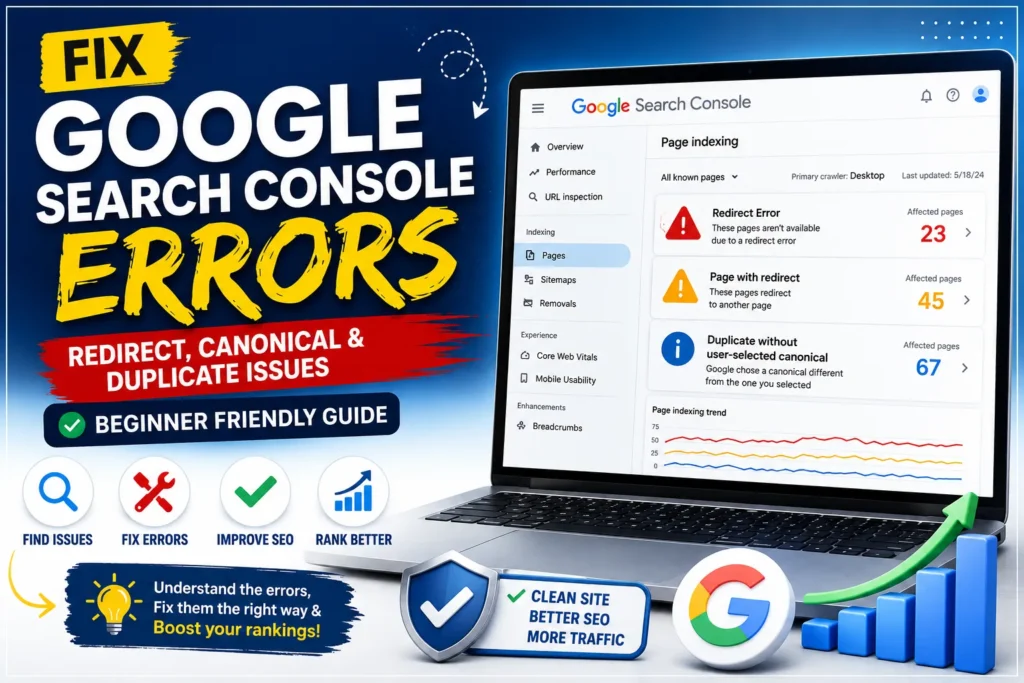
When you first begin blogging, navigating your Google Search Console dashboard can feel overwhelming, like trying to decode a complex control panel full of unclear notifications. Seeing alerts like “Redirect Error” or “Duplicate without user-selected canonical” is enough to make any site owner worry. You might wonder, “Is my website broken?” or “Will these warnings hurt my rankings?”
The truth is, most of these alerts are not actual errors—they are simply status updates from Google. In this comprehensive guide, we will break down the most common Google Search Console notifications for both WordPress and Blogger users, explaining exactly what they mean and when you actually need to take action.
Should you feel that your content is challenging to navigate, I suggest reviewing our in-depth guide on SEO readability and parsing errors (Beginner Guide). It provides a detailed breakdown of how maintaining proper structure and clean formatting can substantially improve your search engine rankings.
If your Google Search Console is full of warnings and you don’t know what to fix or ignore, this guide will make everything crystal clear.
- Understanding the Basics: How Google Sees Your Site
- 1. Redirect Error (The Only True Error)
- 2. Page with Redirect (Usually Normal)
- 3. Canonical Issues
- The Importance of a Clean Sitemap
- Quick Comparison Table
- Common Beginner Mistakes
- When to Use 301 vs. 302 Redirects
- SEO Pro Tips for Long-Term Health
- Frequently Asked Questions (FAQs)
- Conclusion: Moving From Panic to Strategy
Understanding the Basics: How Google Sees Your Site
Before troubleshooting, it helps to know how Google processes your content. Google follows a three-step cycle:
- Discovery: Google finds your page link on your site or elsewhere on the web.
- Crawling: The Googlebot visits your page to read the content.
- Indexing: Google saves the page in its database so it can show up in search results.
Most GSC warnings occur during the transition between the Crawling and Indexing phases.
If you are facing issues with 404 errors or pages labeled as ‘Crawled – currently not indexed’ or ‘Discovered – currently not indexed,’ be sure to check our complete guide on Most Common Google Search Console Errors: 404, Discovered and Crawled.

1. Redirect Error (The Only True Error)
A “Redirect Error” is one of the rare notifications that actually flags a real technical problem on your website that needs your attention. It means Google tried to follow a link on your site but failed because the forwarding process was broken.
What Causes It?
- Redirect Loops: Page A points to Page B, but Page B points right back to Page A, trapping the bot in a circle.
- Long Redirect Chains: You have a situation where one page (A) redirects to another (B), which then redirects to a third (C), and so on; this creates a chain of links that can be problematic for search engines. Googlebot usually stops following after a few jumps to save resources.
- Broken URLs: The page redirects to an empty or misspelled web address.
How to Fix It
| Platform | Action to Take |
|---|---|
| WordPress | Use a redirection plugin to identify & delete circular rules. Check settings to ensure your https:// and www configurations match. |
| Blogger | If you encounter this notification on a ?m=1 URL, you can safely ignore it. Occasionally, Blogger’s mobile traffic management creates a minor, temporary issue for Googlebot; however, this is normal behavior that corrects itself automatically without any need for your input. |
My Experience with Blogger Redirect Errors
I spent a significant period personally dealing with 26 ongoing redirect errors on my own website. Reflecting on the situation, I discovered that the trouble started roughly eighteen months ago, when I unknowingly submitted both the mobile (?m=1) and standard desktop versions of my content to Google Search Console.
By forcing Google to look at both versions, I created “technical noise” that the system struggled to process. I learned the hard way that you do not need to manually submit mobile URLs. Once I stopped submitting the mobile variants and allowed Blogger’s built-in canonical tags to identify the “master” desktop versions, those errors finally stopped being a cause for concern. If you are seeing similar errors, take a step back—often, the fix is simply cleaning up what you have submitted to GSC and letting Google’s bots handle the mobile structure naturally.
Through this journey, I have gained a deep understanding of how these technical hurdles impact your site’s performance. Now that I have mastered these fixes through my own SEO experience, I invite you to go through my full guide on Google Search Console to learn how to turn these roadblocks into opportunities for site growth.
2. Page with Redirect (Usually Normal)
A Page with Redirect notification is typically not an error. It simply means Google found a URL that points somewhere else, successfully followed it, and is keeping a record of the redirect.
Why It Happens
- Strategic Migration: You utilized a 301 redirect to permanently transition an archived article to a new web address.
- Server Rules: Your hosting automatically redirects
httpvariants to the more securehttpsversion of your site.
When to Take Action
You only need to take action if these redirected links show up in your XML sitemap. Your sitemap should only contain active, working pages that are ready for Google to index. If you notice any redirects, just use your SEO plugin to generate a fresh sitemap.
Blogger-Specific Solution
When utilizing the Blogger platform, receiving a “Page with Redirect” alert is typically a routine consequence of how the system’s architecture is designed. Because Blogger automatically manages your site’s mobile-friendly structure by appending ?m=1 to your URLs, Google may flag these redirect paths during its crawling process.
- No Manual Action Needed: In most cases, you do not need to take any action because Blogger handles these mobile redirects natively to ensure a smooth user experience.
- Verify the Live URL: If you are concerned about a specific page, use the URL Inspection Tool in Search Console to test the “Live URL” for your standard desktop link.
- Trust the Platform: As long as your primary desktop URL is indexed, the mobile redirect notification is not harming your SEO and can be safely ignored.
3. Canonical Issues
A canonical tag (rel="canonical") is a piece of code that tells search engines: “If you see multiple versions of this post, this specific link is the master copy I want you to rank”. A canonical issue means Google is uncertain which version is the master copy.
Common Variations
- Alternative page with proper canonical tag: This is excellent. It means Google identified a duplicate (like a mobile version) and successfully assigned the indexing value to your master desktop page.
- Duplicate, Google chose different canonical than user: Google disagreed with your tag because it found another page on your site with similar content that it preferred.
How to Fix It
- WordPress: Use plugins like Rank Math or Yoast SEO to verify your master articles point to themselves as the canonical link.
- Blogger: Blogger handles this natively. If you have issues, ensure you are not using custom theme code that overrides Blogger’s optimized defaults.
The Importance of a Clean Sitemap
Your sitemap is the “master map” you provide to Google, listing all the URLs you want to be indexed. If your sitemap includes pages that redirect, have broken links, or are not the primary versions, you are essentially causing Google to waste time searching for content that doesn’t need to be indexed.
Why a cluttered sitemap hurts you:
- Wasted Crawl Budget: Google allocates a specific “crawl budget” to your website, meaning there is a defined limit to the time and resources the search engine, spends scanning your pages. If Googlebot wastes its time checking broken links or redirecting pages, it may not have enough time left to discover and index your new, valuable posts.
- Indexing Confusion: A sitemap should only contain the “final” versions of your pages. Including redirects confuses the bot, often leading it to ignore your intended primary pages.
Pro-Tip for Maintenance: Once a month, audit your sitemap. If you are using a plugin like Rank Math or Yoast, ensure the “Exclude Redirected Posts” setting is enabled. Doing this easy step keeps your sitemap tidy, so Google only pays attention to your important pages.
Quick Comparison Table
| Status | Is it an Error? | Action Needed? |
|---|---|---|
| Redirect Error | Yes | Yes (Fix loops/chains) |
| Page with Redirect | No | Only if in Sitemap |
| Alternative Page (Canonical) | No | No (GSC is working) |
| Duplicate (Google chosen) | Yes | Check content similarity |
Common Beginner Mistakes
- Trying to Fix Everything: Many beginners panic and try to “fix” pages that Google is already handling correctly.
- Ignoring Canonical Tags: Failing to set these on a WordPress site often leads to Google indexing the wrong version of your posts.
- Creating Redirect Chains: Always link directly to the final destination rather than passing a user through three different URLs.
When to Use 301 vs. 302 Redirects
Understanding the distinction between these two is the core of technical SEO. Choosing the wrong one can permanently cost you your search rankings.
- 301 Redirect (Permanent): This is the “moving house” notification. It tells Google that the old page is gone forever and the new address is its permanent home. Importantly, it passes almost all the ranking authority from the previous link to the new one. Apply this strategy anytime you delete content or transfer your website to a different address.
- 302 Redirect (Temporary): This is a “we are out for lunch” sign. It tells Google the content is missing right now, but it will be back at that same address soon. Since Google assumes the original page will come back, it chooses not to pass the SEO ranking credit over to the temporary location.
The Golden Rule: Always favor a 301 redirect unless you have a specific, short-term reason (like a maintenance page) to use a 302.
SEO Pro Tips for Long-Term Health
- Clean URLs: Keep your link structures simple and descriptive.
- Consistent Linking: Ensure your internal links always point to the “master” URL, not a redirected one.
- Regular Audits: Check your Search Console at least once a month, not daily.
Quick Summary:
- Redirect Error = Fix
- Page with Redirect = Normal
- Canonical Issues = Check tags
Frequently Asked Questions (FAQs)
1. Does “Page with Redirect” hurt my SEO?
No, this is a normal part of website management. Provided the redirect is set up to lead to the right destination, it won’t harm your search engine rankings.
2. Should I delete pages that are “Duplicate”?
Not always. If the pages are similar but serve a purpose (such as product variations), you should use proper canonical tags instead of deleting them.
3. Why does Blogger show so many redirects?
Blogger uses ?m=1 for mobile users. These redirects are necessary for mobile functionality and are not SEO issues.
4. Difference between 301 and 302 redirects?
A 301 redirect acts like a permanent move, transferring your site’s ranking power to the new address, whereas a 302 redirect is just a temporary detour. In almost every situation, you should choose a 301 redirect to ensure your search rankings remain intact.
Conclusion: Moving From Panic to Strategy
Seeing “error” notifications in Google Search Console is something every blogger experiences eventually. While those red warnings might feel alarming at first, they are rarely a sign of a real problem. Most of the time, they are just Google’s way of asking for more information.
Think of your dashboard not as a “judgment room” but as a navigation tool. By understanding the distinction between a critical Redirect Error and a status-only Page with Redirect, you gain the power to steer your SEO strategy with confidence.
Your checklist for a healthy site is simple:
- Audit: Ensure your sitemap is clean and free of redirects.
- Verify: Always check your canonical tags when migrating content.
- Patience: Remember that after you fix an error, it can take Google anywhere from a few days to a couple of weeks to process those changes.
Do not obsess over every single notification. Focus on providing high-quality, unique content and use these technical fixes to ensure the path to that content is clear. After you gain a firm grasp of these basics, you shift from trial and error toward a strategy that produces consistent, organic results.
If you found this guide helpful, explore our complete SEO guides to fix all Google Search Console errors step-by-step.
Suggested Further Reading
- Most Common Google Search Console Errors (404, Discovered and Crawled)
- Readability & Parsing Errors in SEO (Beginner Guide)
- Service Area vs Physical Location: Local SEO Strategy to Rank in Every Neighborhood
- How to Structure a Blog Post for SEO: Beginner-Friendly Guide
- Your Google Business Profile Gets Views but No Sales? 5 Fixes That Turn Views into Real Customers
- Noindex vs Robots.txt vs Canonical: When to Use What?
- Optimize WordPress Robots.txt for SEO (Complete Guide)
- Use On-Page SEO Techniques to Boost Rankings Fast
- The Ultimate Guide to Image SEO: Rank Higher and Load Faster
- Why Fake Reviews Fail: Build Bulletproof Google Review Strategy
- Local SEO Citations: The Ultimate Guide to NAP Consistency
✍️ About the Author
Digital Smart Guide is dedicated to simplifying SEO and digital marketing for beginners and professionals.
We share practical, easy-to-understand strategies based on real experience and ongoing learning from Google updates.
Disclaimer
This content is for informational purposes only. Results may vary based on your niche, competition, and implementation. Always apply strategies based on your specific needs.